In this tutorial we are going to learn how trace and draw an image using Fireworks. You will learn how to draw a Panda in Fireworks by tracing an image. The source .png file can be downloaded at the end of the tutorial.
Read More
In this tutorial, we are going to learn how to create a simple typography illustration in Adobe Fireworks. We will use the transformation tool and paste inside property of Fireworks to create a beautiful typography effect.
Read More
Logo is the most important identity of any personal brand. A good logo says it all about you and your business. Logo needs be appealing to the people and in the meantime, suitable enough to represent the company’s credibility. So, you should be very careful while selecting one for your own business. We are showcasing today a list of outstanding logo design tutorials for you guys. We hope it would give you an edge at the time you think of creating an attractive logo for your own business.
Read More
Create a frame for your photos with a pixelated effect in Fireworks.
Read MoreGive your photos a torn paper effect around the edges
Read MoreTry out these classy edge effects on your photos. It gives a cool look!
Read MoreTurn a new color photo into a sepia toned classic picture!
Read MoreLearn just how easy it is to create swap images in Fireworks. S
Read More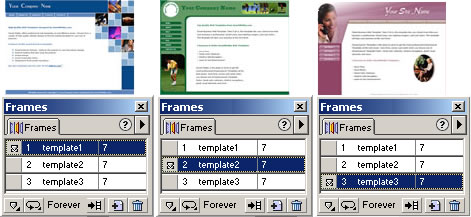
Learn how to create simple animated gifs with macromedia Fireworks 4.0 and above.
Read More
Learn how to create pictures in the shape of objects you create using the paste Inside technique in Fireworks
Read More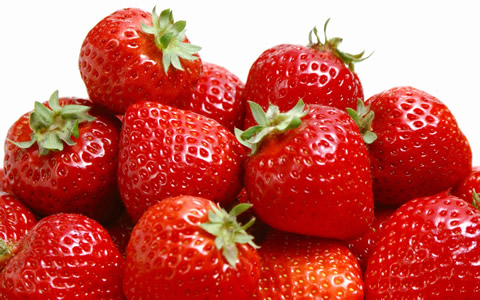
Learn how to resize or scale many images within a few minutes using a simple property in Fireworks called Batch Processing.
Read More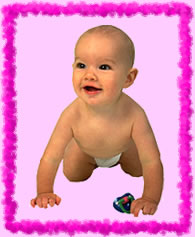
Learn how to create simple borders & frames for pages or images in Fireworks MX 2004.
Read More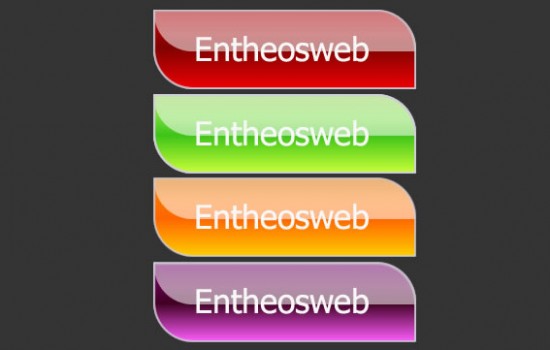
In this tutorial, you will learn how to create a neat button with 2D effect in Adobe Fireworks. You will also learn how to create a rollover effect for the button.
Read More
In this tutorial you will learn how to blur an image and blend text with an image using the overlay blend mode in Fireworks.
Read MoreVertical and Horizontal Drop Down Menus in Fireworks
Read More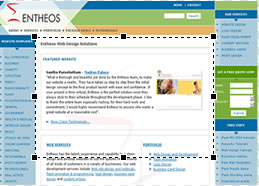
Follow these simple steps to make your own screenshots/thumbnails.
Read More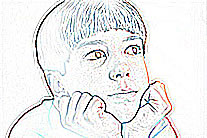
This tutorial demonstrates how to convert an image to a pencil drawing.
Read More