Design rarely feels static when you’re creating it. There’s thinking, sketching, refining, testing, adjusting. Movement. Evolution. But when it’s time to present your work? Too often it ends up as a folder of JPEGs. Or a PDF that someone scrolls through quickly and forgets just as fast. Your work deserves more than that. Logos, UI concepts, branding systems, packaging mockups, experimental visuals are not just files. They’re ideas in motion. And clients don’t just want to see ideas. They want to feel them.
That’s where slideshows and presentation videos come in. Instead of sending static images or manually clicking through slides during a meeting, you can transform your finished visuals into something structured, dynamic, and memorable. Tools like SmartSHOW 3D program make this surprisingly accessible. You don’t need to become a video editor overnight. You simply assemble your images, mockups, and concepts into a cohesive visual story.
Let’s talk about how to do that well.
There are moments when a slideshow simply works better. Not louder. Not flashier. Just smarter.
Scrolling through thumbnails can feel… flat. Even if the work itself is strong. A slideshow changes the experience. You control the pace. You decide what appears first. You guide the viewer’s attention toward the details that matter most. It becomes storytelling instead of browsing.
For Behance, personal websites, LinkedIn posts, or short Instagram reels, even subtle motion increases engagement. People pause longer. They watch. Motion catches the eye in a way static grids often don’t.
Picture this.
You walk into a pitch meeting. Instead of switching between tabs or awkwardly resizing windows, you press play.
Your concept fades in. Typography appears cleanly. Mockups transition one by one. The soundtrack sets the tone without overwhelming the room.
You’re not explaining every detail. You’re letting the work unfold naturally.
That shift — from explanation to experience — can change how your design is perceived.
For product designers, UI/UX specialists, illustrators, architects, branding designers — process matters.
A slideshow lets you show:
Clients often don’t just buy the final outcome. They buy the thinking behind it. When they see your reasoning visually, trust increases.

Making a slideshow is easy. Making a good one? That’s where intention comes in.
Even design projects tell stories.
Random images in random order feel chaotic. A structured sequence feels professional. Start with context. Build toward the reveal. End with clarity. Simple. Powerful.
Transitions should support your content — not compete with it.
If your branding is minimal and elegant, dramatic spinning transitions will feel out of place. If your project is bold and expressive, a slightly more dynamic movement might reinforce its personality. Consistency matters more than complexity. Sometimes a clean fade is all you need.
Music changes everything.
And here’s the important part: timing. When slide transitions align with rhythm, the whole presentation feels intentional. Viewers may not consciously notice it — but they’ll feel it.
This is where many designers rush.
Typography needs time. Layout details need time. Product mockups deserve a moment to be seen. If you flash everything quickly, the viewer absorbs nothing. Slow down. Let the design speak.
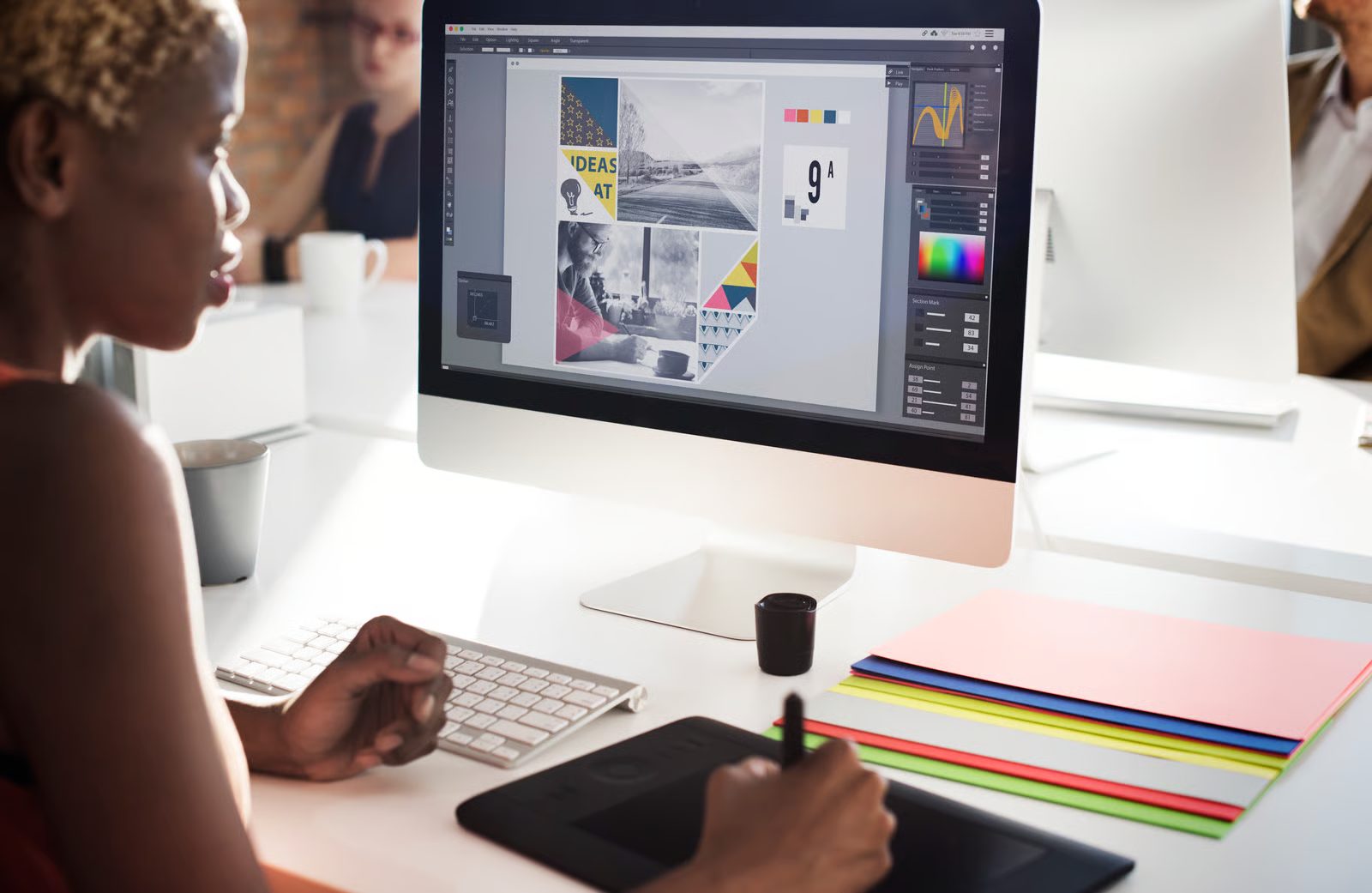
You don’t need a complicated system. A clear sequence works best.
Before opening any software, edit your materials.
Collect:
Then remove anything that feels repetitive or weak. Strong selection is half the work.
Ask yourself:
Clarity of purpose shapes everything else.
Start with a title or logo.
Then introduce the concept. Move through exploration. Build toward the strongest reveal. End with a confident closing frame — maybe your contact info or a tagline.
Each slide should logically connect to the next. Avoid jumping between unrelated visuals just because they look good individually.
With a tool like SmartSHOW 3D, you can:
Layer-based animation works especially well. For example, animate text separately from background images to create depth without chaos.
Subtle motion almost always looks more professional than dramatic movement.

If you’re using music, adjust slide timing to match key moments. A beat drop can introduce your final logo. A quieter bridge can highlight process details.
This small adjustment can dramatically elevate the final result.
Watch the slideshow all the way through.
Ask yourself:
Small refinements make a huge difference.
A slideshow isn’t just a container. It’s its own design piece.
Think about:
White space still matters — even in motion.
If your brand uses a specific color palette, weave it subtly into backgrounds or transition elements. That coherence builds polish.

Even experienced designers slip into these.
Overusing effects.
Just because animation is available doesn’t mean it should be everywhere.
Overcrowding slides.
Five mockups on one frame? Too much. Split them.
Inconsistent style.
Minimal slides mixed with heavy animations feel disjointed. Choose one direction.
Low resolution exports.
Blurry presentations weaken even strong design work.
One slideshow can serve multiple purposes.
You can:
Instead of rebuilding content for every platform, you create one dynamic piece that adapts everywhere. That’s efficient — and strategic.
Here’s a simple habit.
After completing a project:
When the project is still fresh in your mind, it’s easier to shape the narrative. Over time, you’ll build a library of ready-to-show material instead of letting work collect dust in folders.
Design projects aren’t static. Why present them that way?
A slideshow adds flow. Narrative. Intentional rhythm. It helps your audience move through your ideas the way you experienced them while creating.
And no, you don’t need to become a filmmaker to make this happen. With structured thinking and accessible tools like SmartSHOW 3D, you can transform finished visuals into something immersive and polished. Your designs already communicate. A slideshow simply gives them space to unfold — and a little more presence when it matters most.