In this tutorial you will learn how to create a beautiful header collage of 4 different pictures in a few simple steps using Fireworks CS4!
Requirements : Adobe Fireworks CS4
Below is the collage we will be creating in this tutorial. You need one background image and 3 foreground images for this tutorial. Using the technique of fading images and blending them with each other you can add as many images as you need.

Below are the images I have used to create the above collage.

To start, open Fireworks CS4 and create a new document by clicking on File New. As I have designed a collage for a website header, I have created a smaller header – dimensions are 650 by 200 pixels.
Import your background image by clicking on File/Import and choose the background image for your collage. This should fit the entire document. Resize the image to fit the document.
Next, Import the second image and place it where you need it to be displayed. Choose the image and click on Commands/Creative/Auto Vector Mask. Next Choose the way you would like the image to fade/blend in with the background. As I want the image to blend in with the background from right to left I have chosen the last Linear option as my selection. Later you can adjust the amount of fade and from where you want the fade effect to start (see below).


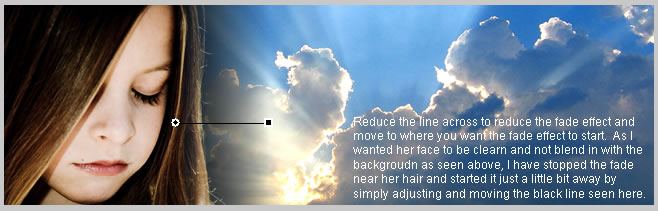
Import the second image and place it where you need it. I have placed this on the right and I have given the opposite fade effect i.e. from right to left. I have adjusted the fade effect by playing around with the black line to get the effect I wanted.

Import the last image, this is the image I want to place in the center so I have applied the first shape option which fades the image from all sides in a radial effect. It blends the image beautifully with the background and there you have a beautiful header collage!

No portion of these materials may be reproduced in any manner whatsoever, without the express written consent of Entheos. Any unauthorized use, sharing, reproduction or distribution of these materials by any means, electronic, mechanical, or otherwise is strictly prohibited.