Flash Tutorials
& Resources
Dreamweaver
Tutorials
Fireworks Tutorials
& Resources
Photoshop
Tutorials
Web Design
Tutorials & Resources
CSS
Tutorials
CorelDraw
Tutorials
You are here : : Home > Free Resources > Photoshop Tutorials > Simple Photoshop Effects   


New Photoshop Tutorials

Image Effects

Text Effects

Designing

Others

Free Photoshop Resources

More Photoshop Tutorials


Other Photoshop Resources

Simple Photoshop Effects

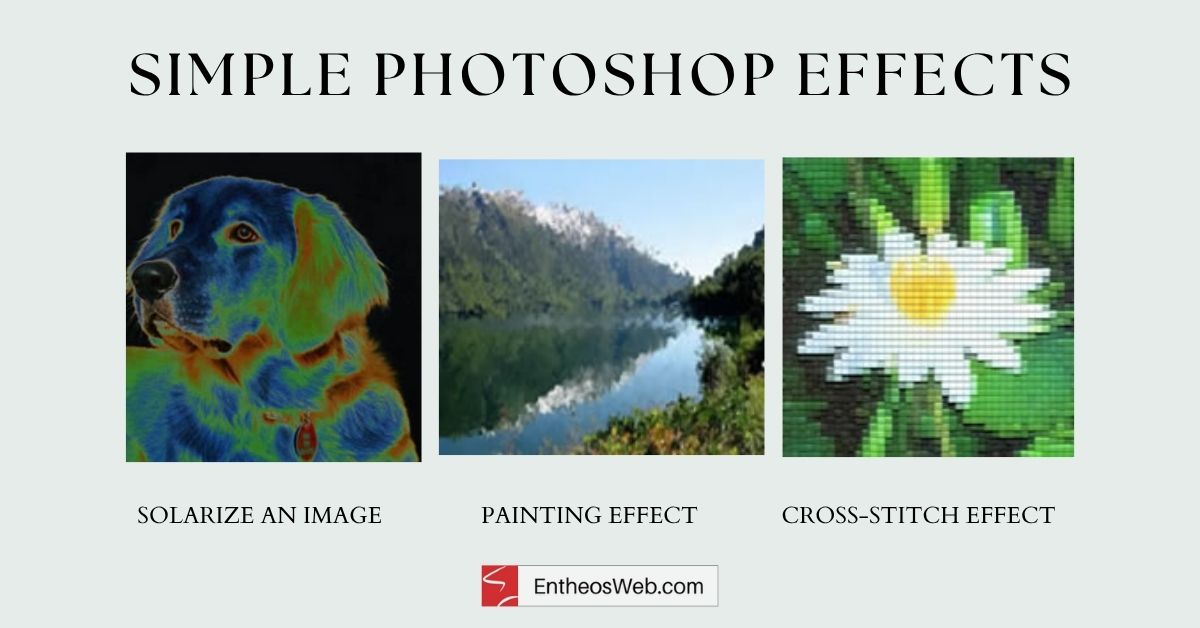
Solarize an image

  • Open an image on your canvas by clicking on File>Open and browse for the image you want to open.
  • Click on Filter>Stylize>Solarize.
  • Click on OK and here's the effect


Painting Effect

  • Open an image which you want to convert to a painting.
  • Click on Filter>Brush Stroke>Spatter.The Spatter window will open. Give the values as follows : Spatter, Spray Radius - 10, Smoothness - 5.
  • Next, click on Filter>Blur>Blur.
  • Click on OK and here's your result.

Cross-Stitch Effect

  • Open a new file.
  • Goto Filter>Texture>Patchwork. A new window opens, give the values   Square Size - 5 and Relief - 6.
  • Click on OK and here's your result.


Now building a website is as easy as 1-2-3!

Please Like, Tweet, Share or Comment on this page if you found this tutorial/resource useful!

Join us on Facebook to keep updated with all the latest tutorials and web design freebies from EntheosWeb!

No portion of these materials may be reproduced in any manner whatsoever, without the express written consent of Entheos. Any unauthorized use, sharing, reproduction or distribution of these materials by any means, electronic, mechanical, or otherwise is strictly prohibited.

best psd templates

Free HTML5 Website

New Photoshop CS5 Tutorials

Fantasy Photo Manipulation

Retouch a Model Portrait with Flawless Natural Skin

Featured Template
Template Number: 34167
Type: JS Animated Full Site
Price: $69