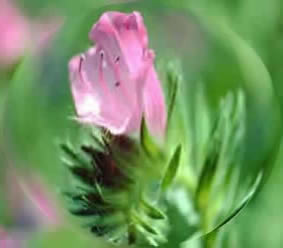
Learn to give a through-a-crystal-ball effect in Photoshop. This effect looks great on images!The Spherize filter gives objects a 3D effect by wrapping a selection around a spherical shape, distorting the image, and stretching it to fit the sphere.
Step 1
Open an image on your canvas by clicking on File>Open and browse for the image you want to open.
Step 2
Make a circular selection using the Marquee tool on the part of the image that you would like to give the crystal ball effect.
Step 3
 |
Click on Filter>Distort>Spherize The Spherize window opens. Give the settings as seen in the screenshot on the right.
Amount – 100%
Mode – Normal
Click on OK.
The image inset will be in the shape of a sphere, here’s the final image!
 |
No portion of these materials may be reproduced in any manner whatsoever, without the express written consent of Entheos. Any unauthorized use, sharing, reproduction or distribution of these materials by any means, electronic, mechanical, or otherwise is strictly prohibited.