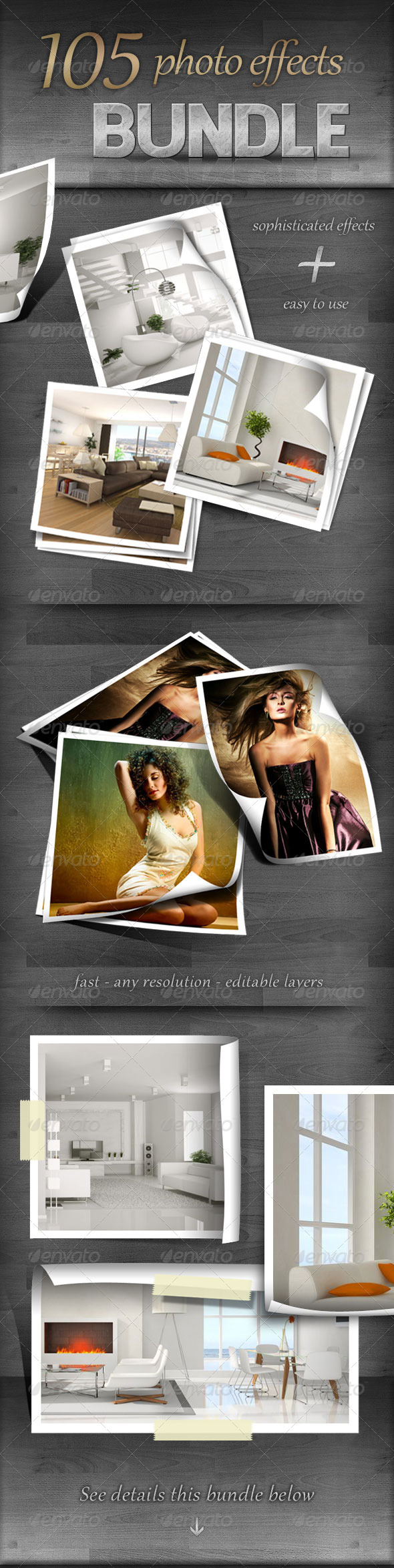
Learn how to blend images or photos and create a collage with them using Photoshop. Mostly used for making headers of a website.
We will create a simple collage of 3 photographs named photo1, photo2, photo3 in here, but you can add as many photos as you want. A collage is made of a minimum of 2 photographs.

Follow the steps and respect the rules:Step 1 : Creating the file with the photographs of the collage
Create a new file in Photoshop by clicking on File>Open. Open 3 photographs or image by clicking on File>Open and choosing the 3 images you would like to blend. Drag the photographs to your new file canvas in 3 different layers. Adjust the size of your photos to your canvas size.
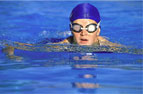 |  | 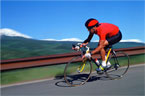 |
| Photo1 in layer 1 | Photo2 in layer 2 | Photo3 in layer 3 |
Step 2 : Filling the background color for the canvas
If you want to put a background color choose the same color of the photo1, in here choose blue color and paint the background with Paint Bucket Tool.
Method: Click on  Set foreground color. Choose Blue color. Go to
  Paint Bucket Tool. Click on your canvas in the background layer. It will fill the background with Blue color.
Step 2 : Blending the photographs
Work on layer1 Photo1. Select with  Marquee Tool the rectangle you want to blend. Click on Select >Feather. A screen named Feather Selection will appear. Click 30 pixels on Feather Radius. Click OK.

Copy the selected rectangle and paste it inside the feathered selection.
A new layer will appear. Name it collage1. Delete layer1.
Follow the same steps for Layer2, photo2 and layer3, photo3. You will find that the feather effect blends the images with each other. You can adjust the amount of feathering and the area of feathering to make the images blend more smoothly. Finally, you can double click on the layer and adjust the opacity in the blending options for the collage to blend with the background.
Your Layers panel will look like this:

Bravo! Your collage is ready!

Use this ready-made photo effects available for purchase to create gorgeous photo collages and image effects within seconds! Save time and effort and create stunning photo effects using ready-made Photoshop actions!