Part 3 on How to Create a Web site with Photoshop and Dreamweaver
This tutorial is part of a 4 page tutorial on how to create a simple web site using Photoshop.
Tutorial 1 : Creating a unique website header
Tutorial 2 : Designing your website layout in Photoshop
Tutorial 3 : Slicing your layout in Photoshop
Tutorial 4 : Creating your web site in Dreamweaver
Let us begin with the slicing tutorial. We need to slice the layout to save the necessay images in web format and use them in html. Click here to view the layout we are using on our 4 part tutorial on creating a website. Follow these steps to slice your layout.
 slice tool and draw a box to define the area you want to slice. We will first create a slice for the logo. Next, use the slice tool again to drag across the banner and create the next slice. Repeat for the graphics found on the right with the dotted line. Create one slice for all the 3 images. View the completed layout to check the slices.
 Now double click on the slice. A screen named Slice Options will come. Enter the type of the slice, as an image and name of the slice. For the logo slice, give the name logo. Repeat this step to name the banner slice and the graphics slice. You can name them banner and pic_right.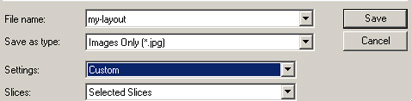
Now click on Save. Check that the 3 images have been saved in the images folder in your web site folder. Proceed to creating the website in Dreamweaver.
This tutorial is part of a 4 page tutorial on how to create a simple website using Photoshop.
Tutorial 1 : Creating a unique website header
Tutorial 2 : Designing your website layout in Photoshop
Tutorial 3 : Slicing your layout in Photoshop
Tutorial 4 : Creating your web site in Dreamweaver
No portion of these materials may be reproduced in any manner whatsoever, without the express written consent of Entheos. Any unauthorized use, sharing, reproduction or distribution of these materials by any means, electronic, mechanical, or otherwise is strictly prohibited.