In this tutorial you will learn how to change facial expressions in a photograph using the Liquify tool in Photoshop.
Step1: Open a New file by clicking on File>Open. Create a new layer.
Step 2: Open a Photo by clicking on File>Open. Drag the photo to your new file Canvas.
 |
Step 3: Adjust the size of the Photo to your canvas size. You can use the Transform tool (Ctrl + T ) to resize the Photo.
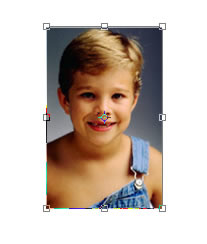 |
Step 4: Select Filter>Liquify, the Liquify window will open.
 |
Step 5: In the Liquify window, select the Warp tool (W) , a small circle will appear which represents the size of the brush.
 |
Step 6: The brush size and all other properties can be changed accordingly in the liquify property window as shown below.
 |
Step 7: Select the area you would like to modify and drag the mouse to achieve the desired effect. The photo can be changed as shown below.
 |
You can manipulate photographs in many ways, using the following tools in the liquify window :


Examples are shown below :
Liquify> Warp tool(W)
 |
Liquify> Bloat tool(B)
 |
Liquify> Twirl Clockwise tool(R)
 |
No portion of these materials may be reproduced in any manner whatsoever, without the express written consent of Entheos. Any unauthorized use, sharing, reproduction or distribution of these materials by any means, electronic, mechanical, or otherwise is strictly prohibited.